如何追踪询盘对应的产品呢?
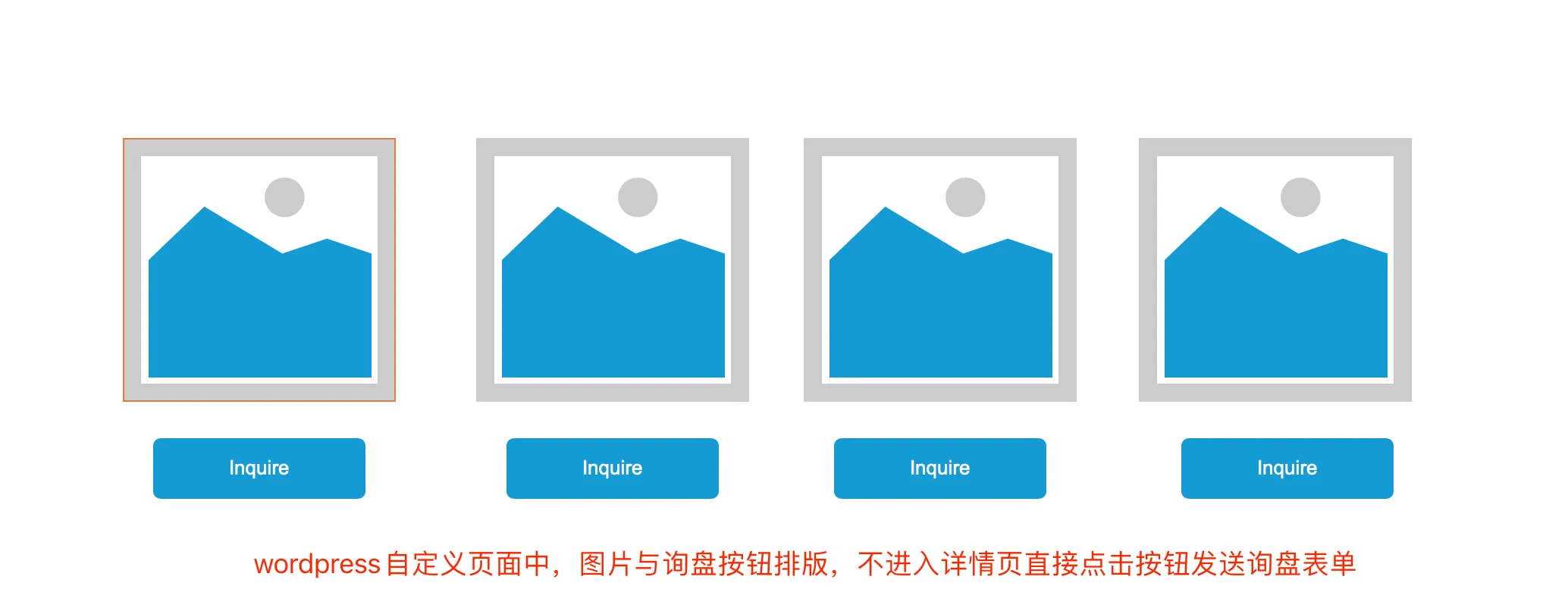
我们用WordPress做Google ads广告落地页,比如下图模拟的产品展示方式,在每个产品下方都会有Inquire 发送询盘按钮, 点击后弹出填写表单,这个时候如果你收到了询盘,你可以知道客人是点击哪个产品过来的询盘吗? 如果我们知道客人是问的那个产品,这个时候针对性回复询盘,那么我们的询盘回复率也会相应提高。具体操作方法,我们在下方介绍:
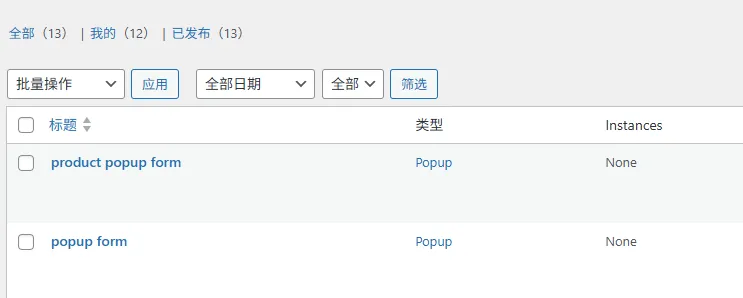
1、在Wordpress+Elementor 环境下复制一个弹窗表单,命名为Product Popup Form(弹出表单形式)
2.进入 Elementor页面 编辑弹窗表单
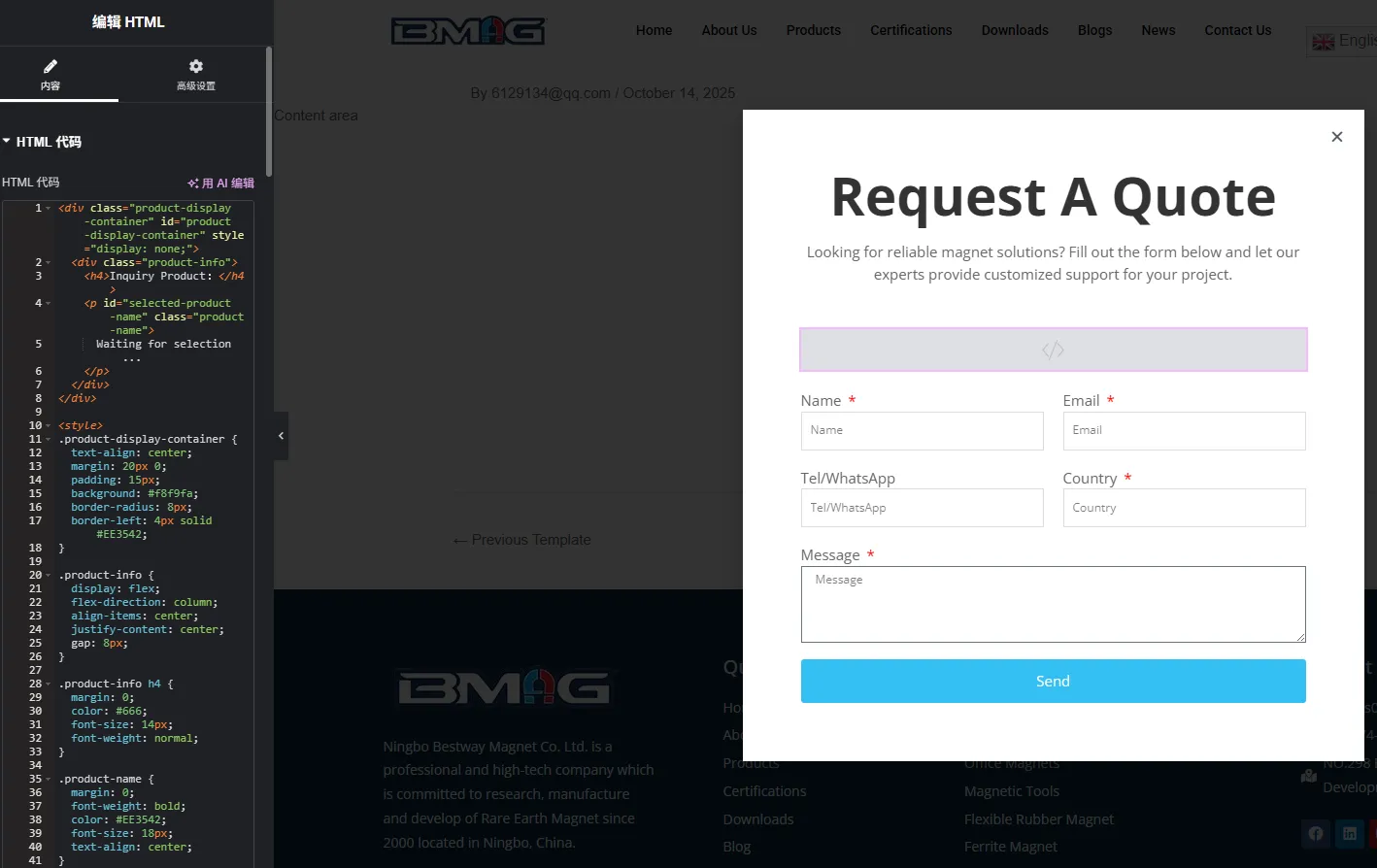
在Form表单组件上方添加html组件,然后添加以下代码 :
<div class="product-display-container" id="product-display-container" style="display: none;">
  <div class="product-info">
    <h4>Inquiry Product:</h4>
    <p id="selected-product-name" class="product-name">
      Waiting for selection...
    </p>
  </div>
</div>


<style>
.product-display-container {
  text-align: center;
  margin: 20px 0;
  padding: 15px;
  background: #f8f9fa;
  border-radius: 8px;
  border-left: 4px solid #35C0F4;
}


.product-info {
  display: flex;
  flex-direction: column;
  align-items: center;
  justify-content: center;
  gap: 8px;
}


.product-info h4 {
  margin: 0;
  color: #666;
  font-size: 14px;
  font-weight: normal;
}


.product-name {
  margin: 0;
  font-weight: bold;
  color: #35C0F4;
  font-size: 18px;
  text-align: center;
}
</style>


<script>
document.addEventListener('DOMContentLoaded', function() {


  // 新隐藏字段
  function updateElementorFormField(productName) {
    const fields = document.querySelectorAll('input[name="form_fields[product_name]"], input[id="form-field-product_name"]');
    fields.forEach(field => {
      field.value = productName || '';
      // 触发 input 事件让Elementor刷新字段状态
      field.dispatchEvent(new Event('input', { bubbles: true }));
    });
  }


  // 更新显示区域
  function updateProductInPopup(productName) {
    const container = document.getElementById('product-display-container');
    const productElement = document.getElementById('selected-product-name');
    if (!container || !productElement) return;


    if (productName && productName.trim() !== '') {
      container.style.display = 'block';
      productElement.textContent = productName;
      updateElementorFormField(productName);
    } else {
      container.style.display = 'none';
      productElement.textContent = 'Waiting for selection...';
      updateElementorFormField('');
    }
  }


  // 清除数据
  function clearProductData() {
    window.selectedProductName = null;
    sessionStorage.removeItem('selectedProduct');
    localStorage.removeItem('selectedProduct');
    updateProductInPopup('');
  }


  // 点击产品卡立即更新
  document.addEventListener('click', function(e) {
    let target = e.target;
    while (target && target !== document.body) {
      if (target.hasAttribute('data-product')) {
        const productName = target.getAttribute('data-product');
        window.selectedProductName = productName;
        sessionStorage.setItem('selectedProduct', productName);
        updateProductInPopup(productName);
        return;
      }
      target = target.parentElement;
    }
  });


  // 弹窗关闭时清空
  document.addEventListener('click', function(e) {
    if (
      e.target.classList.contains('elementor-popup-close') ||
      e.target.classList.contains('elementor-popup-modal') ||
      e.target.classList.contains('close-btn') ||
      e.target.closest('.elementor-popup-close')
    ) {
      clearProductData();
    }
  });


  document.addEventListener('keydown', function(e) {
    if (e.key === 'Escape') clearProductData();
  });


  // 初始化
  clearProductData();


});
</script>
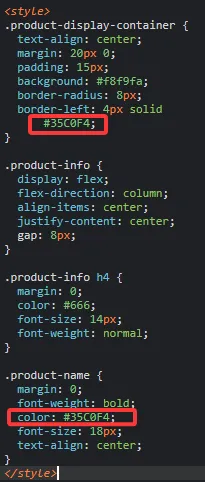
这里要根据网站主题颜色替换对应颜色样式代码
3.在Form表单组件里添加隐藏字段
放第一个
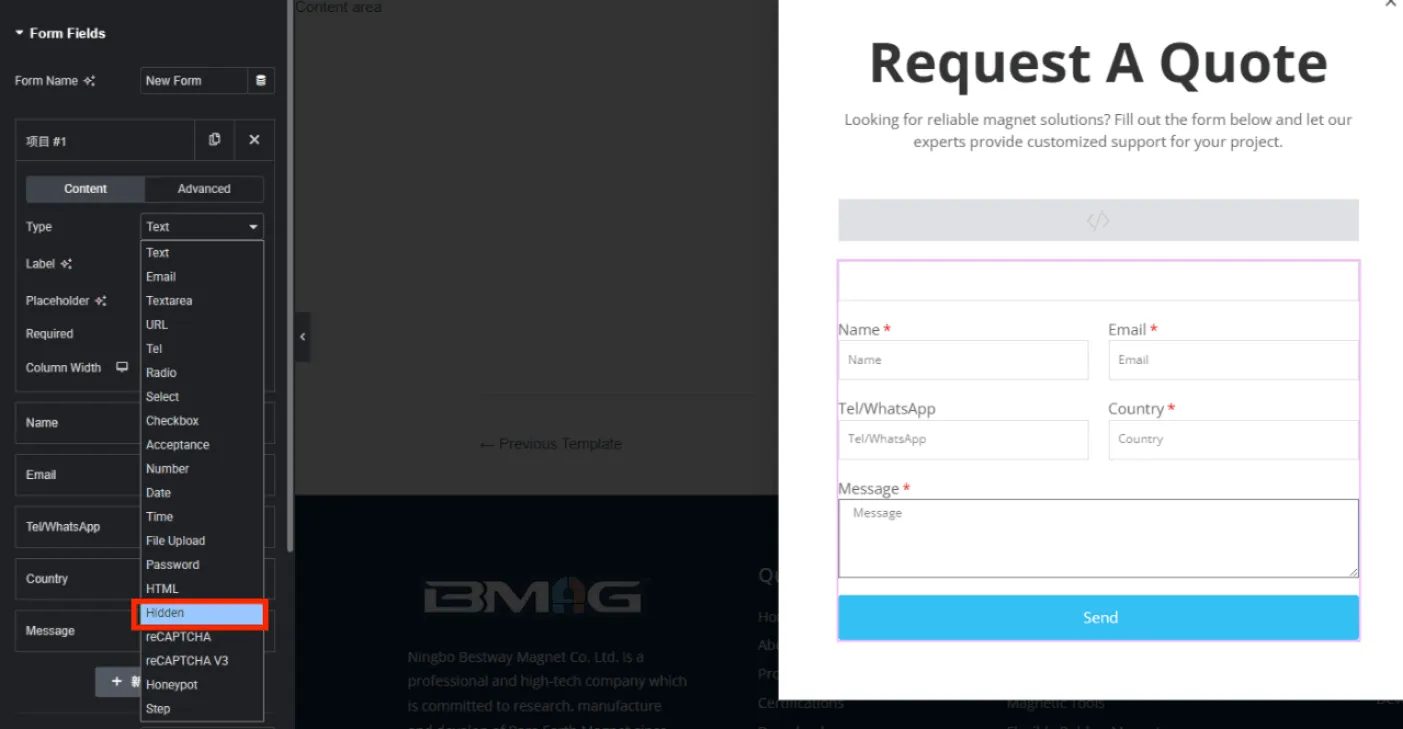
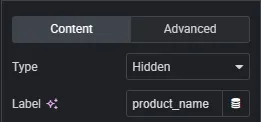
字段类型:Hidden
字段名称:product_name
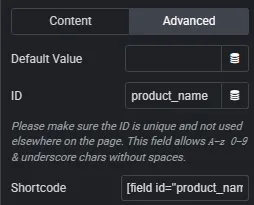
ID :product_name
下面的Shortcode不用管,填完id会自动变
4.邮件设置
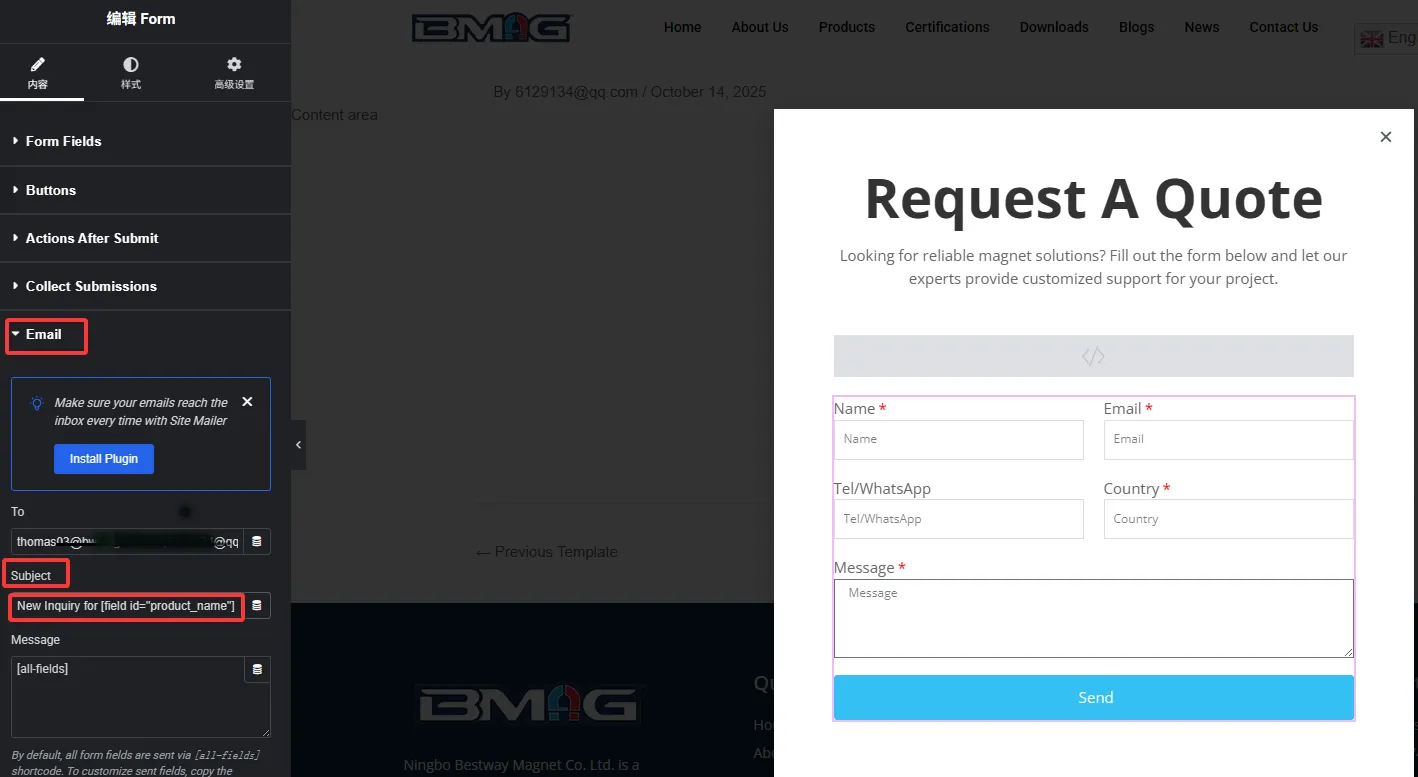
Subject内容下:
设置邮件标题内容:
New Inquiry for [field id=”product_name”] from (你的网站域名)
填完发布
5.给产品添加属性值
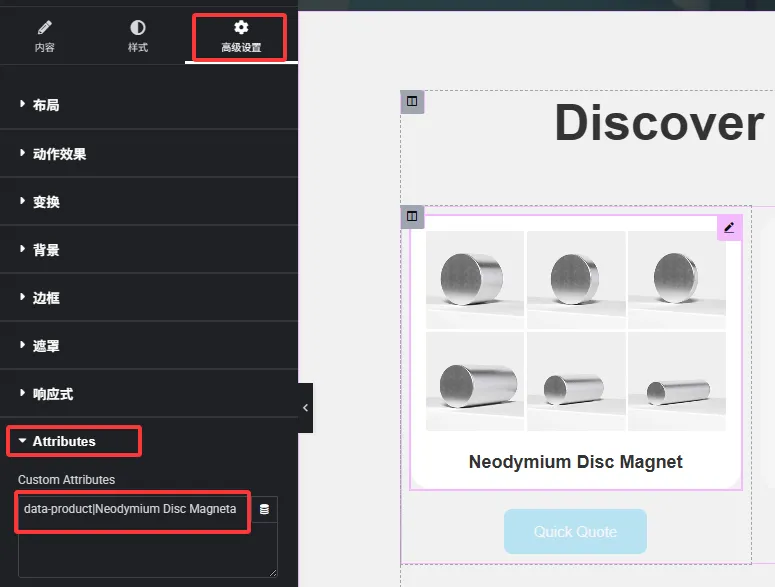
选择产品图片,给要【添加弹窗的组件】添加产品名属性(盒子、按钮都可以)
格式为:data-product|产品名
发送询盘的按钮也是同样的操作方式
6.选择弹窗模板-product popup form
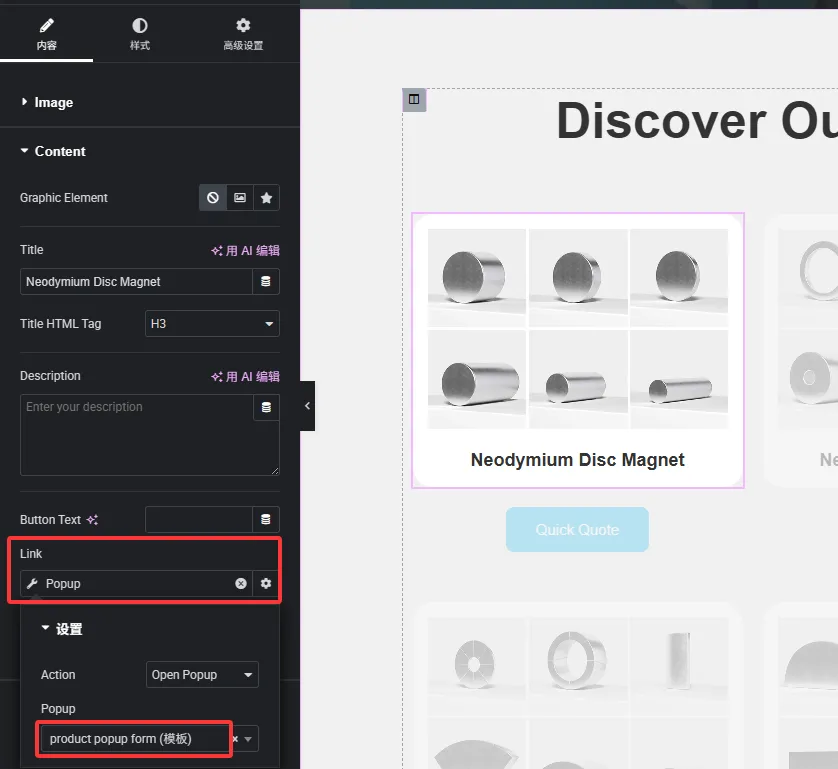
7.重复操作为其他产品添加属性,进行测试
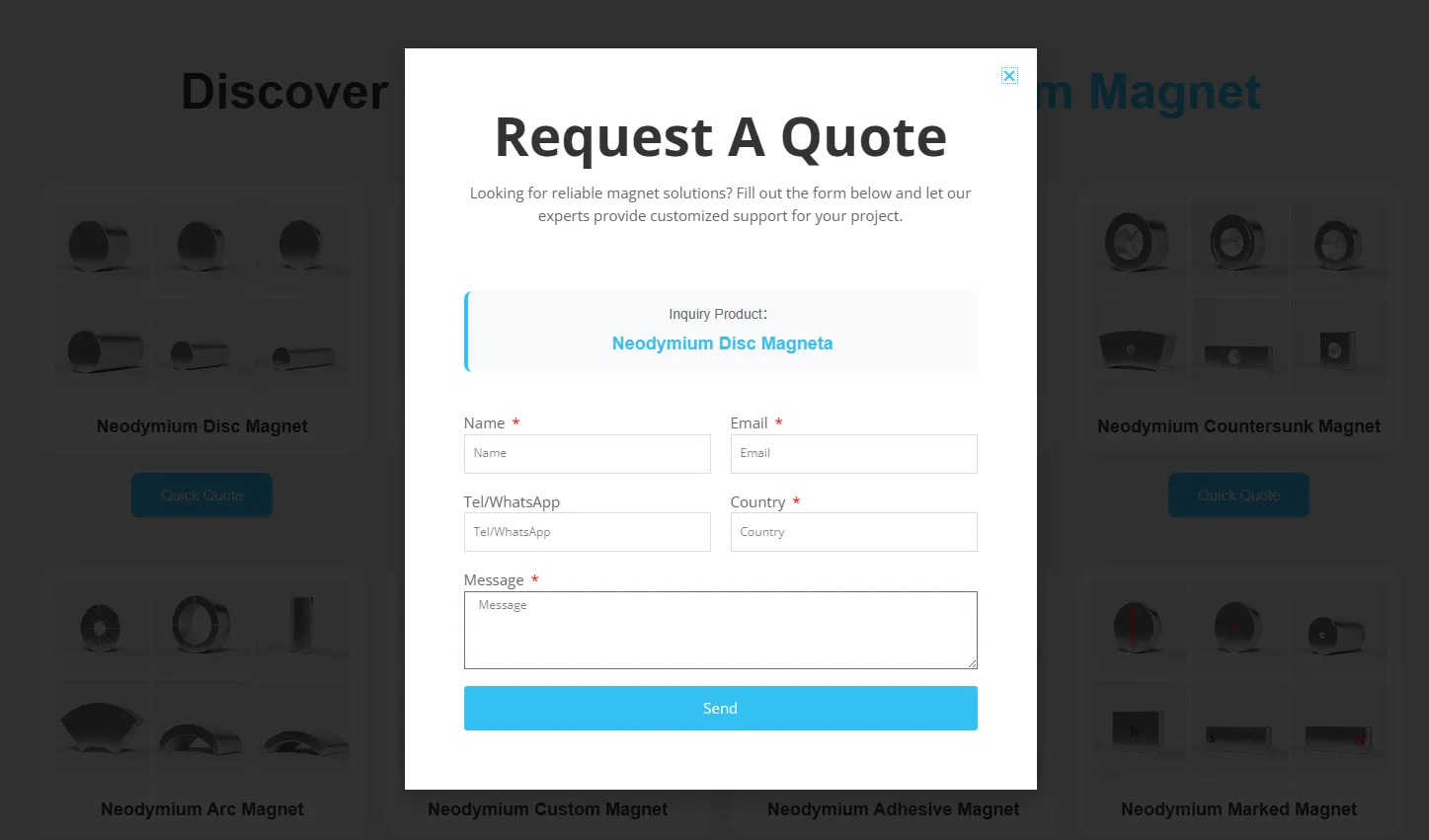
完成后,你就能看到询盘收到后分别是对应什么产品了。
关于如何追踪询盘对应的产品问题,如果您在设置中还有疑问,欢迎与我们海派网络联系。